Form Properties – Event
Properties
See also: Forms
Event Properties
The following properties are available in the Events tab of the Form Properties dialog.
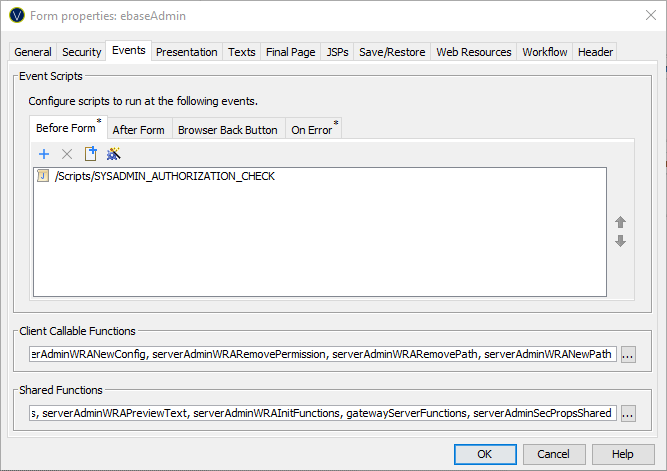
Event Scripts
This tabbed section allows scripts to be added or removed from the various form level events.
· Before Form: this event runs only once at the start of form execution before the first page is prepared.
·
After Form: This event runs when the user clicks
the form’s special finish button if
configured. This is a legacy feature of the Ebase system and is not commonly
used with new applications. All pages of the form will normally have been fully
validated at this point. After this event completes, form execution is
terminated and the form's final page
is displayed. See Ebase Page Sequencing for
more information on the finish button
and final page.
·
On Error: This event runs whenever an
error occurs while executing a form. It allows the application to catch
failures that would otherwise crash the form and display an error page. If this
event is not specified, the form
will terminate and the standard form
failure error page is displayed.
·
Browser Back Button: This event runs when the user
clicks the browser back button and then clicks on a control (usually a button
or hyperlink) from a previous page. See support
for browser back button for further details.
See Understanding Server-side Events for more information on these events.
A superscripted * to the right of the event name in each tab indicates that at least one script is configured for the event.
Scripts Panel
The sequence of script execution at each event can be
altered by selecting a script and clicking on the  and
and  icons.
Scripts can be added and removed by clicking on the  and
and  buttons. The button is used to select one or more existing
scripts and shows the Workspace
Browser dialog which displays all available scripts in the current project
or any linked projects.
buttons. The button is used to select one or more existing
scripts and shows the Workspace
Browser dialog which displays all available scripts in the current project
or any linked projects.
Existing scripts can be opened by double clicking over the script path.
 creates a new script. A dialog pops up where
you can specify the script name, the script type (FPL or Javascript) and the
folder where the script should be created. Any folder in the current project or
any linked projects can be chosen.
creates a new script. A dialog pops up where
you can specify the script name, the script type (FPL or Javascript) and the
folder where the script should be created. Any folder in the current project or
any linked projects can be chosen.
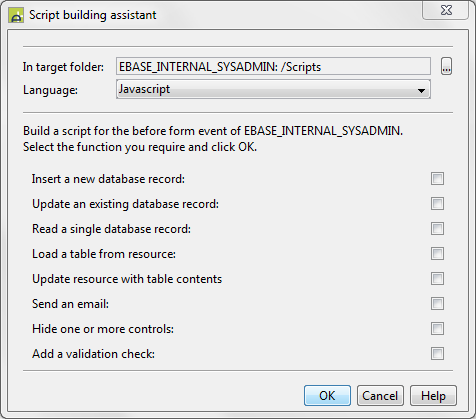
 presents a dialog that can be used
to automatically create a script for some common functions as shown below. You
can choose the script language (FPL or Javascript) and the folder where the
script should be created. Any folder in the current project or any linked
projects can be chosen.
presents a dialog that can be used
to automatically create a script for some common functions as shown below. You
can choose the script language (FPL or Javascript) and the folder where the
script should be created. Any folder in the current project or any linked
projects can be chosen.
Client Callable Functions
In this section, you can configure any scripts that contain server functions that are called from Javascript running in the client browser using $eb.executeFunction. These scripts are maintained separately for security reasons. See Working with the Client API for more information.
Shared Functions
In this section, you can configure any scripts that contain functions which are to be made available to all events at execution time. See Shared Functions for more details.