Form Properties – Miscellaneous
Properties
See also: Forms
Miscellaneous Properties
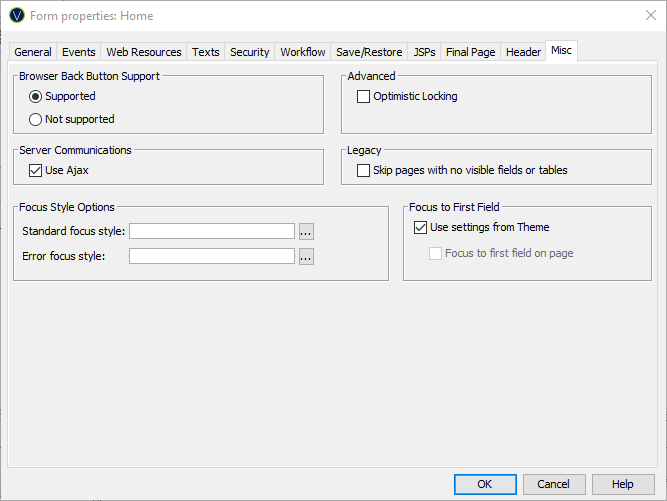
The following properties are available in the Misc tab of the Form Properties dialog.
|
Property |
Description |
||||
|
Specifies whether the user can use the browser back button. The default for this parameter is taken from Form Options tab of Designer Preferences. There is no recommended setting for this parameter, but enabling back button support can have implications for the design of the application. See back button support for more information. |
|||||
|
Applies to database updates only. When checked, the system will check that the record about to be updated has the same values as it did when it was read from the database using a fetch command. This check is applied only to mapped fields as Ebase is not concerned with the state of any other fields on the database record. If the values are unchanged then the update is performed, otherwise command status is set accordingly. (See update command in FPL script command syntax or the API DatabaseResource.update() method) Unchecked is the default setting and then the update is performed without any checks. Optimistic locking is supported only for update of a single database record using the update command/method – update of multiple records using updatetable is not supported. |
|||||
|
When checked, the system will use |
|||||
|
Skip pages with no
visible fields or tables |
This is a Version 3 legacy setting and is generally not applicable for new forms created in Ebase Version 4 or later. When checked, a page is not displayed when it contains no visible fields or tables (either they don’t exist or they are hidden). All control types other than fields and tables are ignored when making this determination. The page configured as the next page is shown instead. When unchecked, a page is always displayed even though it may be empty. |
||||
|
Focus Style Options |
See Controlling Browser Focus for more information on these options. |
||||
|
Focus to First Field |
See Controlling Browser Focus for more information on these options. |