Server-side Scripts
See also: Server-side Events, Javascript Quick Start Guide, Javascript Developer’s Guide, JavaScript API, Debugging Javascript Scripts
Introduction
Scripts can:
- Dynamically
change the behaviour of a Form at runtime based on
selections made by the end user, e.g. hide or display Fields, navigate,
change appearance, etc.
- Validate
entered data.
- Integrate
with external resources such as databases, email servers, web services and
other external applications.
Each Script is written in Javascript and can be associated with one or more Server-side Events that occur at different times during the processing of a Form.
Verj.io also has legacy support for Scripts written in FPL, but we encourage you to use Javascript.
Javascript Editor
Javascript server-side Scripts are edited in the Javascript Editor, which has a number of developer tools to help you code productively.
Code-Assist
The code-assist feature can be activated at any time by pressing Ctrl+Space. It is also displayed automatically after a period (.) is entered following a variable name or method/function call. Two panels are displayed: the left-hand panel shows a list of available variables, functions, methods etc, and the right-hand panel shows corresponding documentation. You can add documentation to your own Javascript functions, which will also appear here.
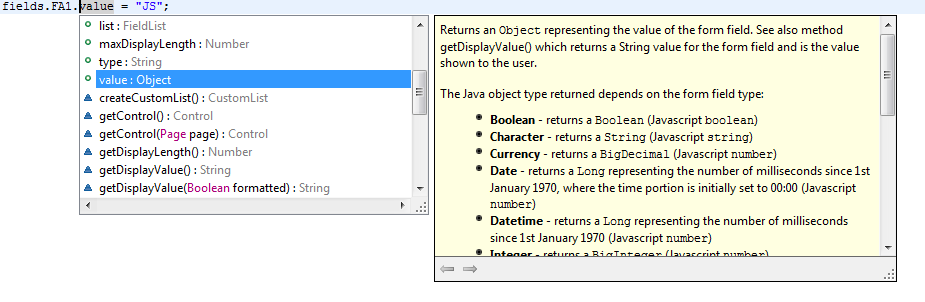
Code-assist can be used for Javascript variables or functions and is extremely useful for showing lists of Form elements (e.g. Fields, Tables, Controls) and available methods and properties. Javascript is a dynamically typed language and it isn’t always possible to know accurately which type a variable or expression resolves to. For this reason, the methods and properties shown by the code-assist feature should not be interpreted as the limit of what is available. As a developer, you may know that a certain variable is of a different type and therefore you can invoke any methods applicable for that type.
The icons displayed in the left-hand panel are as follows:
|
|
Verj.io API variables |
|
|
Global variable, declared in a shared function script |
|
|
Local variable, declared in this script |
|
|
Function or method |
|
|
Global functions |
|
|
Static functions or methods |
|
|
Static fields |
|
|
Language syntax template |


Linking to a Form
Each script can be linked to another entity such as a Form, Component or Application Layout. This allows the code-assist feature to display lists of Fields, Tables, Pages etc. It does not affect how or when the Script is run.
This link is shown on the JavaScript Editor toolbar as a hyperlink that opens the entity in the Studio. When the code assist is not showing the correct list of elements, this is the first thing to check.
When the currently focussed entity is a Script, clicking the
run icon  will run its linked entity.
Ctrl click drilldown
You can “drill down” into functions and variables within your Javascript code by holding down the Ctrl key and moving the cursor over a function or variables reference. The referenced item is then displayed as a hyperlink, and clicking on the link will open it. You can navigate backwards and forwards by using the arrow keys on the right-hand side of the open items toolbar at the top of the designer window.

Toolbar

The toolbar contains the following:
|
|
Ctrl-S |
Save the script |
|
|
Ctrl-X |
Cut |
|
|
Ctrl-C |
Copy |
|
|
Ctrl-V |
Paste |
|
|
Ctrl-F |
Find/Replace – shows the find and replace dialog |
|
|
|
Maintain Documentation |
|
|
|
Show information: shows dates for creation and last update |
|
|
F1 |
Help – shows the Server-side Javascript menu page |
|
|
Using Form |
See Linkage to Form |
|
|
Undo/Redo |
See undo/redo. |


Right Click Menu
Contains the following:
|
|
Undo |
See undo/redo. |
|
|
Redo |
See undo/redo |
|
|
Ctrl-X |
Cut |
|
|
Ctrl-C |
Copy |
|
|
Ctrl-V |
Paste |
|
|
Ctrl-A |
Select All |
|
|
Ctrl-F |
Find/Replace – shows the find and replace dialog |
|
|
F3 |
Find Next |
|
|
Shift-F3 |
Find Previous |
|
|
Ctrl-L |
Go to line |
|
|
Ctrl-/ |
Toggle comment – comments or uncomments selected lines. |
|
|
Folding |
Submenu containing expand/collapse options for comments and functions |