Style Sheet Configuration
Dialog
Configuring
a Style Sheet from the workspace (internal)
Configuring
an external Style Sheet
See also: Working With Web Resources, Style Sheet Editor
This dialog allows existing Style Sheets and SCSS files to be associated with a page, form or presentation template. It supports both Style Sheets and SCSS files defined within the workspace (internal) and external Style Sheets/SCSS files which are loaded via a URL.
Style Sheet Runtime
At runtime, Style Sheets must be associated with a page before the styles within that sheet become available to the page; see How CSS Style is Applied for details. Style Sheets can be associated with an individual page directly, with a form (i.e. all pages within that form), and with a presentation template (i.e. all pages within all forms that use that template). A form inherits any Style Sheet associations from the presentation template (if the form is linked to one) and a page in turn inherits all the Style Sheet associations from its owning form. At each level, it is possible to disable Style Sheets specified at higher levels.
SCSS File Runtime
A SCSS file is a CSS pre-processor that allows basic programming features such as variables, functions, mixins, loops etc…. At runtime, the SCSS file is compiled into one CSS and the converted styles are returned to the browser. Then it works in the same way as any other Style Sheet style. See Using SCSS Files for details.
This dialog is available in the Web Resources Section for each of these entities. Its job is to allow Style Sheets and SCSS files to be added, and to manage any inherited associations.
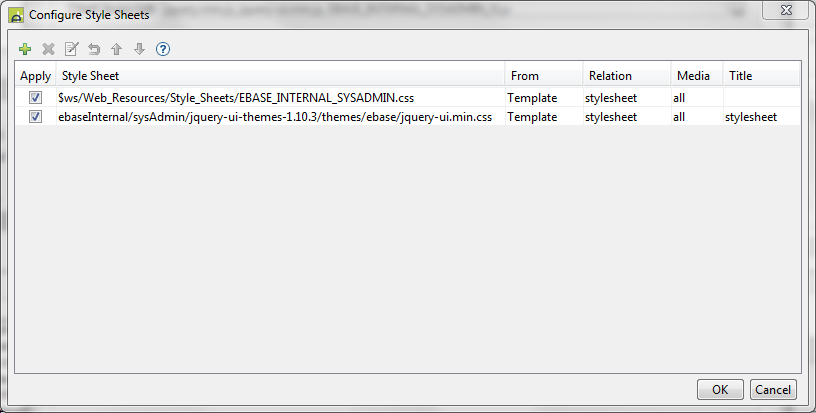
Only those Style Sheet/SCSS files associations which apply to the entity which opens the dialog are shown. The picture above shows the dialog opened from Page Properties, so page, form and template associations will be shown (only page and template associations exist in this example). When opened via Add Style Sheet and SCSS File
Style Sheets can be added from within the workspace
(internal) or externally via a URL. Click the  icon to add a new Style Sheet which shows this
dialog:
icon to add a new Style Sheet which shows this
dialog:
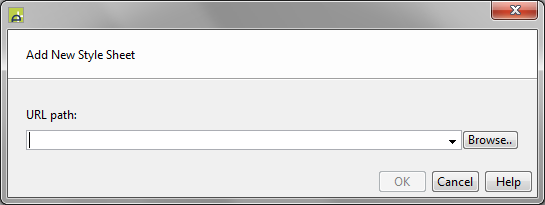
Configuring a Style Sheet from the workspace (internal)
Click the Browse.. button then select the Configure from workspace tab to show the Workspace Browser which will show all available Style Sheets and SCSS Files.
Configuring an external Style Sheet
A URL can be either of the following (see URL Formats):
- absolute when it starts with a protocol or “//” e.g. http://www.mydomain.mystylesheet.css or //ajax.googleapis.com/ajax/libs/jquery/1.10.1/query-ui.min.css. Absolute URLs can only be configured by typing the URL into the URL path edit box.
- relative when it doesn’t start with a protocol or “//”, and is then treated as being relative to the root of the Verj.io web application (e.g. css/somescssfile.scss). To use a relative URL, click the Browse.. button then select the Configure from Server tab to browse the server’s file system. You can also enter a relative URL directly in the URL path edit box.