Outline View
Application
Layout Controls in a Form
See also: WYSIWYG View, Form Editor, Application Layout Editor, Controls
Introduction
The Outline View is designed to be used in conjunction with the WYSIWYG View. Each page consists of a number of controls organised in a tree-like structure. The WYSIWYG View shows a page as it will appear in a browser, whereas the Outline View shows the controls as a tree hierarchy. So both of these panels show alternate views of the same underlying controls. Most editing functions are available from both panels.
Selection and highlighting of items between the Outline and
WYSIWG views can be synchronized by clicking on the  toggle switch at the top of the Outline View.
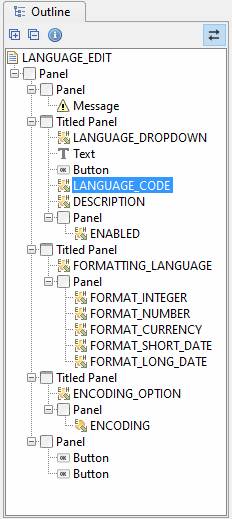
Outline View toolbar
|
|
|
Expand all controls in the tree |
|
|
|
Contract all controls in the tree |
|
|
|
Toggles the display of control names |
|
|
|
This toggle switch controls synchronization with the WYSIWYG View. When synchronized, a control selected in either view is highlighted in both views; when unsynchronized, each view works independently. |


Adding Controls
Controls can be added to a page in a number of ways:
- By dragging items from one of the other view panels. The following are supported:
· Dragging any control from the Palette View. Note that for field and table controls, this will also create a new field or table respectively.
· Dragging one or more fields from the Fields View
· Dragging one or more tables or table columns from the Tables View
Drop locations are shown as follows:
· A short black line underneath a control icon indicates the selected controls will be added after the control
· A short black arrow underneath a control name indicates the selected controls will be added to the control
- Via right click.
- Using
the fields wizard
 shortcut Alt Ctrl W (this only supports
the creation of new fields and field controls)
shortcut Alt Ctrl W (this only supports
the creation of new fields and field controls)
When a new control is added, its properties are shown in the Properties View.
You cannot add a Control that is owned by the Application Layout Control.
Moving Controls
Controls can be moved by dragging: either within the Outline View, within the WYSIWYG View, or between these two views.
Drop locations are shown as follows:
- A short black line underneath a control icon indicates the selected controls will be added after the control
- A short black arrow underneath a control name (to the right of the icon) indicates the selected controls will be added to the control
You cannot move a Control that is owned by the Application Layout Control.
Deleting Controls
Controls are deleted by first selecting them, then either:
- Pressing the Delete key
- Right clicking and selecting Delete control(s)
You cannot delete a Control that is owned by the Application Layout Control.
Right Click Functionality
Right clicking on a control shows the control right click menu.
Application Layout Controls in a Form
Application Layouts defines the structure of each page from within the Form. Controls on a Form that are owned by an Application Layout are read only and cannot be changed in any way:
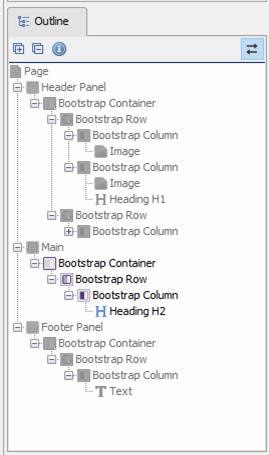
Controls owned by the Application Layout are read only. These controls are displayed as greyed out and indicated that they cannot be changed in any way. It is not possible to add additional controls to or configure, move or delete these controls. The Form’s Controls are only added to the Main Control. The Main Control is the containing Control for the Forms Content. Controls inside the Main Control are not read only and they are not greyed out. It is not possible to right click and Application Layout Control.
Changes made to the Application Layout using the Application Layout Editor are automatically reflected in the Form, even if the Main Control is moved to a different location.
Help
The help key F1 displays help for the currently selected control at any point.