Application Layout Toolbar
See also: Application Layout Properties, Application Layout Editor, Studio Preferences

The following functions are available from the Application Layout toolbar located at the top of the Application Layout Editor. Most functions are also available from the Application Layout menu item at the top of the page.
|
|
Application Layout properties (Ctrl Shift P) |
Displays the Application Layout properties. |
|
|
Maintain texts |
Displays the texts maintenance dialog, where all Application Layout texts and messages can be maintained. This dialog supports the simultaneous display of texts in multiple languages and is useful when adding texts for a new language. |
|
|
|
Refreshes the WYSIWYG View. |
|
|
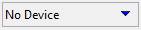
Screen Resolution |
Adjusts the screen resolution based on either a preconfigured device/screen resolution or using custom setting. No Device – No Device is selected and the full width of the editor is used. <device-name> - Set the designer Screen resolution to the pre-configured device for design purposes. For example iPhone 17, this sets the designer screen size to 375 by 812 pixels. The devices are configured in Studio Preferences. If a device is not selected as show device in the Studio Preferences then they will not appear in the drop-down list. Custom – enables the width and height boxes and allows you to specify these values manually. Edit – Opens the Studio Preferences to configure the screen devices. |
|
|
Zoom control |
Adjusts the size of all page content including both text and non-text items. Can have the following values: Full Width - adjusts the size of content in conjunction with the screen size control. When the screen size is set to an explicit value (anything other than none), then full width will adjust the size of content to fit the selected screen size. When screen size is set to none, a setting of full width has no effect. % - zooms by the specified amount. Zoom values can be maintained in Studio Preferences. |
|
|
Size Unit Control |
Select a size unit from the dropdown list. This size unit
will then be displayed in the ruler. |
|
|
Rotate Screen |
Flips between landscape and portrait view. |
|
|
View Source (Ctrl U) |
Displays the XHTML source used to generate the page. Note that in the designer environment, this source contains additional tags used to control the designer environment. |
|
|
Undo/Redo (Ctrl Z/Ctrl Y) |
Supports undo/redo of the last action plus the ability to display and select from the stack of undo/redo actions. See undo/redo |
|
|
Manage Layout |
Gives access to the docking and frame management functions |