Application Layouts
Creating
an Application Layout
Creating
a blank Application Layout
Downloading
an Application Layout
Programming
Application Layouts
Changing an Application Layout at
Runtime
See also: Application Layout Editor, Themes, Working with Forms, Server-side Events
Introduction
An Application Layout defines the Theme and structure of all pages in a Form. It can be associated with any number of Forms and so provides a consistent look and feel to your application.
For example an Application Layout may provide:
- A header.
- Some navigation.
- A footer.
Application Layouts can be configured in a Project’s Properties and used by all Forms in that Project. Alternatively, a Form can be directly associated with an Application Layout.
Controls can be added to an Application Layout’s Page Control to build the overall structure (Headers, Footers etc…) of your application. An Application Layout must contain a single Main Control, which marks where a Form’s content will be added.
An Application Layout:
- Maintains its own state, so if an Application Layout’s state is changed it is changed for all Forms that use it.
- Is
represented in the Entity Tree by the
 icon.
icon. - Can contain other Entities (Scripts, Resources and Web Resources), which can then be used by the Application Layout.
- Is made up of Fields, Tables, Controls, Texts, Resources, Scripts and Data Connectors.
- Cannot contain Components or Widgets.
Creating an Application Layout
To create a new Application Layout either:
· Select File à New à Application Layout from the menu.
· Right-click on a Project or Folder and select New à Application Layout
The resulting New Application Layout Dialog provides the following options:
- Name: The name of the Application Layout.
- Set as current Project’s Application Layout: Updates the current Project’s Application Layout to use the Application Layout created.
- Set as Application Layout for new Projects: Updates the New Projects Application Layout property in the Workspace Preferences. All new Projects will use this Application Layout by default.
Using this dialog you can either create a blank Application Layout or download a ready made Application Layout from the Verj.io Resource Hub.
Creating
a blank Application
Layout
Entering a name and clicking OK (without selecting an Application Layout to download) will create a blank Application Layout at the desired location.
Downloading
an Application
Layout
Select one of the Application Layouts available on the Verj.io Resource Hub to download and optionally provide a new name.
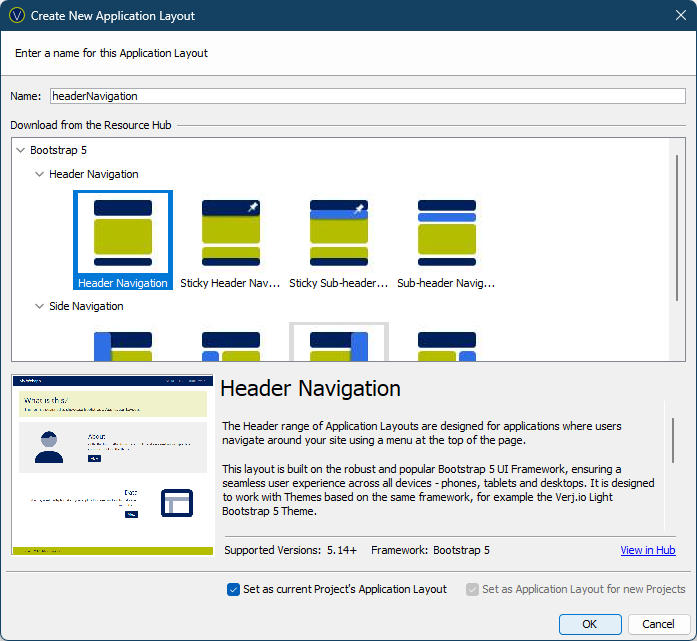
A description and an image gallery are displayed for the currently selected Application Layout. More information about the Application Layout is available on the Verj.io Resource hub, which can be opened in a browser by clicking View in Hub.
Using an
Application Layout
A Project can be configured to use
an Application Layout in its Project’s
Properties dialog. Forms can use their Project’s Application Layout by selecting
the From Project checkbox in the General Tab of its Form
Properties dialog.
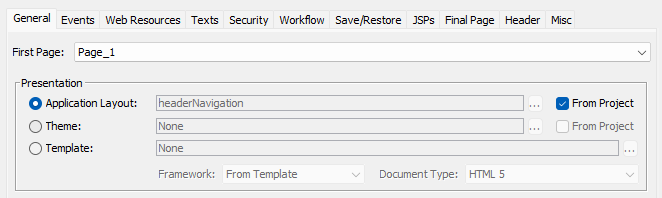
Changes to a Project’s Application
Layout are automatically reflected in all the Forms that use it.
The Workspace
Preferences dialog can be used to automatically configure new Projects
to use an Application Layout, as well as automatically configuring all new
Forms to use their Project’s Application Layout. These settings help to ensure
a consistent look and feel for your application.
A Form can also be set to use a
specific Application Layout by selecting the Application Layout radio
button and using the … button to select an Application Layout from the
Workspace.
Application
Layout Entity
To edit the Application Layout, double-click the  icon in the Entity tree. This will open
the Application Layout Editor and
expand the Application Layout Entity revealing its contents.
icon in the Entity tree. This will open
the Application Layout Editor and
expand the Application Layout Entity revealing its contents.
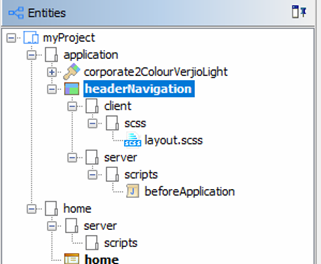
An Application Layout Entity can contain Folders, Server Resources Folders, Server-side Scripts, Lists, Resources, Themes, Web Resources and Texts.
An Application
Layout displays paths to entities from inside itself as applicationLayoutName:/path-to-entity.
Application Layout
Properties
Application Layouts have many features that can be configured in the Layout Properties dialog.
This dialog is split into 4 tabs:
Styling an Application
Layout
Application
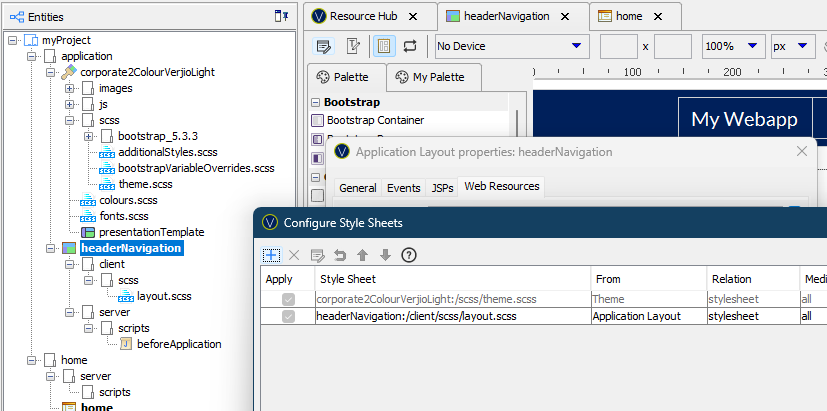
Layouts can be styled by selecting a Theme in the Application Layout properties.
Selecting a Theme will determine the style of the Application Layout, including
colours, fonts and UI framework.
An
Application Layout displays paths to entities from a Theme as From Theme:/path-to-entity.
Application
Layout Events
Application Layouts support the following events:
|
Event |
Typical Use |
|
Application Layout
Events |
|
|
Before Application |
To perform any preliminary processing before the Application Layout is first displayed to the user e.g. load information from a database or some other external system. |
|
Control Events |
|
|
Validation |
To perform validation of data entered by the user. |
|
On Click |
Used to perform specific processing when the user clicks
something – e.g. a button, hyperlink, image, tab, menu item etc. |
(See Server-side Events
for more information)
Programming
Application Layouts
Application
Layouts can only access state data within its own context. The JavaScript API can
be accessed using the appLayout
API variable e.g.:
appLayout.fields.username.value = system.securityManager.userName;
Note that
the appLayout
is optional within the context of an Application Layout and that the following
would have the same result:
fields.username.value = system.securityManager.userName;
Click here for more
details.
Changing an Application Layout at Runtime
An
Application Layout can be changed at runtime using the JavaScript API:
- projects.setAppLayoutPath(path_to_app_layout): Updates all Projects’ Application
Layout property to the specified Application Layout. All Forms using
its Project’s Application Layout are automatically updated to reflect the
new Application Layout.
- projects.<project_name>.setAppLayoutPath(path_to_app_layout): Updates the specific Projects’ Application Layout property to the
specified Application Layout. All of this Project’s Forms using their
Project’s Application Layout are automatically updated to reflect the new
Application Layout.
- form.setAppLayoutPath(path_to_app_layout): Updates the current Form’s Application Layout to the one
specified.
It is recommended that all
Application Layouts are added to the same Project in your application, to
ensure that the Forms can access the new Application Layout. If the Application
Layout switched to is in a different Project to the current Application Layout,
then the new Application Layouts Project must be linked to by the Form’s
Project.
Testing Application Layouts
Application Layouts can be tested
by clicking the Test  icon on the Main Toolbar.
Deleting Application Layouts
To delete an
Application Layout right click on it in the Entity Tree and select Delete. If
there are references from other Entities, such as Forms or Projects, a warning
dialog will be displayed:
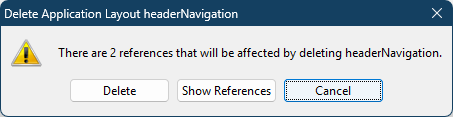
You have
the option to show the entities that reference it or to simply delete it.
Simply deleting the Application Layout may cause unexpected behaviour in the
entities that currently reference it.