Texts
Using
the Texts Maintenance Panel
Displaying
messages using texts
Subtituting
runtime values into texts
Via text property of controls and
fields
See also: Linked Texts, System Texts, Text Control, Messages
Introduction
A Text
represents a multi-lingual string and is used whenever there is a need to
display a text or a message to the user. A Text can be displayed to the user
at any point during Form processing, and can be
accessed and changed programmatically.
Texts are used throughout Verj.io. For example, if you create a “Click Me” button, the system will create a Text for you in the Studio’s default language, you can then translate it into any language.
All texts have the following characteristics:
- Texts are multi-lingual.
- Each Text can be used at any point in a Form or can be displayed as a message.
- Texts can contain formatting HTML e.g. italic tags <i> </i>.
- Texts are programmable.
There are three types of Texts:
- Local Texts - these form a pool of Texts within each Form or Component and cannot be shared.
- Linked Texts - these are stand-alone Texts files containing any number of individual texts that can be shared by all Forms.
- System Texts these are Texts used internally by the Verj.io system to display various texts, typically standard error or information messages.
Maintaining Texts
Maintaining local texts
Local texts can be maintained in two ways:
- On the page where they appear
- Using the Texts Maintenance panel to maintain all form/component texts in one place
On the page
Wherever a text appears on a page you can double click to change it. You can also select the control which owns the text and then change the appropriate text (there may be more than one) in the Properties View. In both cases you will see a text edit box which looks like this:
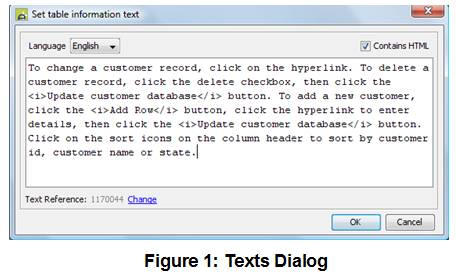
Language: Select the text language from the dropdown which shows all supported languages
Contains HTML: indicates that the text contains formatting HTML. See HTML Content for further information.
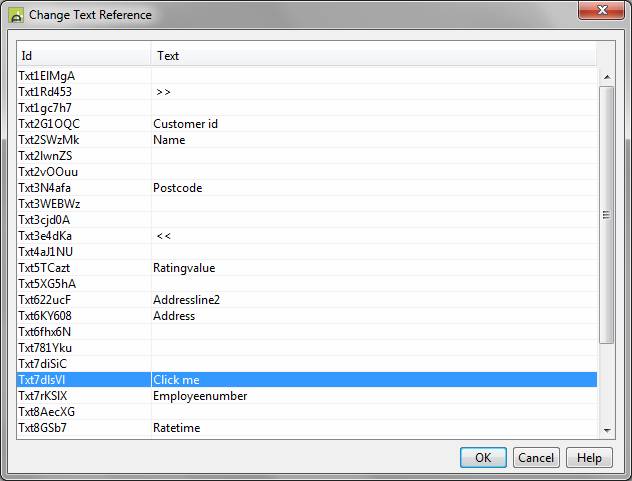
Text Reference: this shows the unique text id that is being used. Click the Change button to use a different text. This presents the dialog shown below which allows you to choose any available text including local or linked texts.
Using the Texts Maintenance Panel
Clicking the Texts Maintenance icon  on the form or component toolbar. This shows
the Texts Maintenance panel (see below) where you can edit and translate all
the form or component texts in one place and can create new texts which can be
displayed as messages.
on the form or component toolbar. This shows
the Texts Maintenance panel (see below) where you can edit and translate all
the form or component texts in one place and can create new texts which can be
displayed as messages.
Initially the filter at the top of this panel is set to Custom Texts and Messages and will therefore only show texts that have been manually added using this panel. These Custom texts are distinct from the remaining texts, which have been created automatically by the system. The filter can also be used to display all texts on each individual page or to display form level texts such as form header text or HTML title text – these form-level texts are configured using Form Properties.
This panel works in two modes depending on which tab is selected:
- Edit texts in a single language
- Translate texts into other languages
Edit texts in a
single language
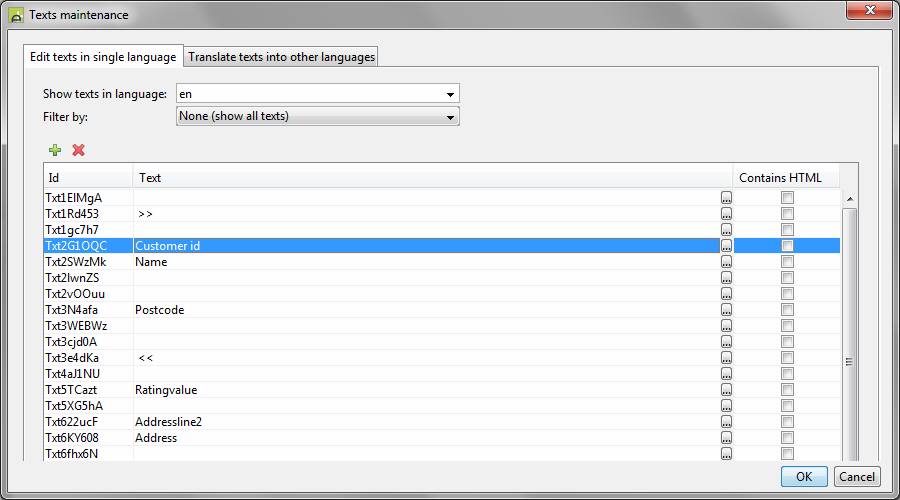
The language dropdown can be used to set the required language and the filter dropdown can be used to filter which texts are shown. You can then edit the texts by typing in the tabular display or by clicking the … button to the right of each text. You can also indicate whether a text contains HTML - see HTML Content for further information.
New texts can be added by using the keyboard up/down keys or
by clicking on the  icon. If you are adding texts to be used as
messages, it’s a good idea to separate these from the other texts by giving
them an id with a common prefix such as Msg
e.g. Msg1, Msg2, Msg3 etc. You can
then quickly navigate to all message texts when a list of all available texts
is displayed as a dropdown in the script editor.
icon. If you are adding texts to be used as
messages, it’s a good idea to separate these from the other texts by giving
them an id with a common prefix such as Msg
e.g. Msg1, Msg2, Msg3 etc. You can
then quickly navigate to all message texts when a list of all available texts
is displayed as a dropdown in the script editor.
Texts can be copied/pasted to other forms, components or to stand-alone Texts entity files by right clicking in the texts display table.
Translate texts into
other languages
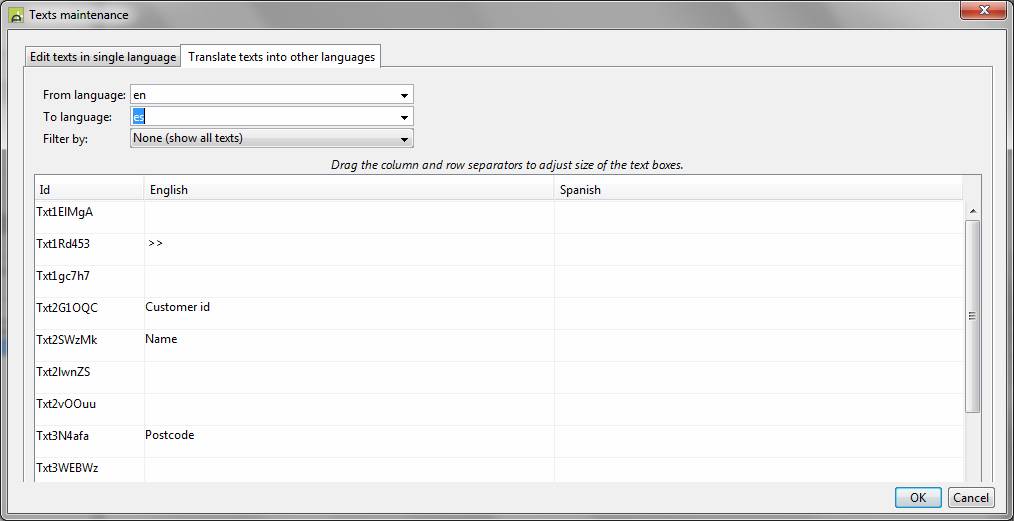
This panel displays the texts for two languages side by side. Select the from and to languages using the dropdowns and use the filter dropdown to filter which texts are shown e.g. for an individual page. The size of the text entry boxes can be adjusted by dragging the separator lines.
Maintaining Linked Texts
Linked texts are contained within stand-alone Texts entity files. These Texts files are then linked to individual forms or components by adding them to the list of linked files in the Texts tab of Form Properties.
See Linked Texts for details of editing and maintaining these texts.
Texts can be copied and pasted between local and linked text panels.
Maintaining System Texts
System Texts contain a number of texts displayed by the Verj.io system itself. See System Texts for details of editing and maintaining these texts.
Translation
At runtime, Texts are automatically displayed in the current runtime language. If a Text is missing in that language, the corresponding Text in the default language will be used - click here for more information.
Texts can be translated within the Verj.io system by clicking the Translate texts into other languages tab available in each Text editor. Translation can also be done externally.
HTML Content
Texts can include HTML markup, check the Contains HTML checkbox to render it as HTML.
Texts Programming
Displaying messages using texts
Any text can be displayed as a message. If you are creating texts to be used as messages, it’s a good idea to separate these from the other texts by giving them an id with a common prefix such as Msg e.g. Msg1, Msg2, Msg3 etc. You can then quickly navigate to all message texts when a list of all available texts is displayed as a dropdown in the script editor.
Substituting runtime values into texts
Each text can contain any number of variables to be
substituted dynamically at runtime with the values of one or more form fields
or table columns. Each such variable must start with &&, followed by
the form field name or table column name. For example, form text:
Department &&DEPT,
expenditure for &&YEAR
is displayed as:
Department Personnel,
expenditure for 2005
if field DEPT has value 'Personnel' and field YEAR has value
'2005'.
A field name can be delimited by any character which cannot
appear in a field name e.g. a space or comma are fine, but a hyphen and
underscore will not work as these are treated as part of the field name. Field
name variables can also be specified as &&{VAR1} e.g. &&{DEPT};
if this syntax is used, it does not matter which character follows the
variable. Environment variable names
can also be used.
Changing texts dynamically
Texts can
be changed dynamically at runtime in two ways. These changes are
temporary and last only to the end of the form execution.
Via text property of controls,
fields and texts
When a text
is configured as a property of a control or a field, it can be changed as shown
below. Field texts cannot be changed using FPL.
|
FPL: |
API based language
(Javascript): |
|
// change text of Text Control set TEXT12.text = 'any new text'; |
// change text of Text Control controls.TEXT12.text.text = "any new text"; // change field label
text fields.FIELD1.labelText.text
= "any new text"; //change text
directly texts.NameText.text
= "any new
text"; |
See the documentation on each control for a list of property names.
Via Set Text command
This is only currently supported by the FPL scripting language and there is no equivalent for API based languages.
The set text FPL command changes a text using its id. The difference between this method and the control property method is that the set text command changes the text in the text pool, therefore the text will be changed in all locations where it is referenced.
There are two supported syntaxes:
set text textid
= 'any new text';
e.g.
set text TXT14 =
'Your answer is not clear - please provide additional details';
or..
set textid1
= textid2;
e.g.
set text TXT14
= TXT29;
Reading Texts using text id
This is only currently supported by the FPL scripting language and there is no equivalent for API based languages.
A text can be read using the gettext() function. This can read a text of any type (component/form, shared or system) and in any language e.g.
set temptext = gettext('TXT1');
set temptext = gettext('SHR11', 'Shared', 'EN');
Click here for details.