Form Properties – JSP Properties
See also: Forms, Application Layouts, Themes
JSP Properties
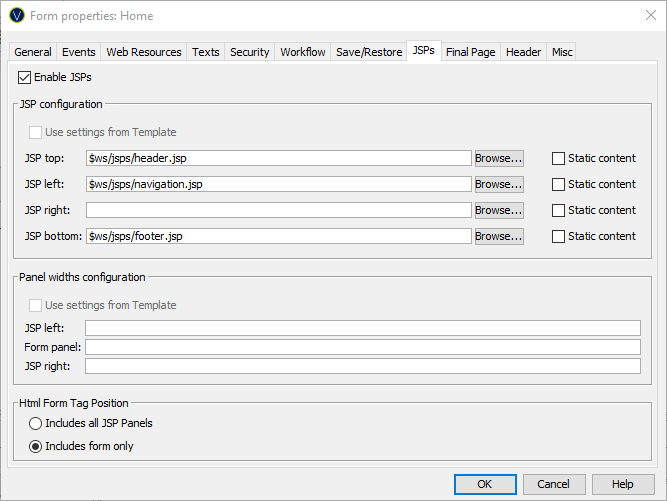
The following properties are available in the JSPs tab of the Form Properties dialog.
This tab allows you to specify the paths of the optional surrounding JSPs. JSPs specified here override any default values configured for form default properties in the form’s presentation template, and can themselves be overridden by specifying values for the Page Control properties for individual pages. Click here for info on the precedence of the various JSP configuration parameters.
|
Property |
Description |
|
Enable JSPs |
If you
wish to surround your application with additional panels, you can do so by
enabling JSPs and specifying their paths here. See Surrounding JSPs for more
information. |
|
Top JSP |
The URL of the top JSP. Clicking the … button opens the Web Resource Browser. |
|
Left JSP |
The URL of the left JSP. Clicking the … button opens the Web Resource Browser. |
|
Right JSP |
The URL of the right JSP. Clicking the … button opens the Web Resource Browser. |
|
Bottom JSP |
The URL of the bottom JSP. Clicking the … button opens the
Web Resource Browser. |
|
Static content |
This checkbox applies only when Ajax communication is enabled.
When checked, the JSP is not refreshed when a page is updated, for example as
a result of button click event. JSPs are always refreshed when
moving to a different page. |
|
Panel widths configuration |
|
|
Use settings from
template |
When checked, the following width settings are taken from
the Form section in the Presentation Template associated with the Form. |
|
JSP left |
The width of the left JSP. |
|
Page |
The width of the page. |
|
JSP right |
The width of the right JSP. |
|
HTML Form Tag Position |
|
|
HTML Form Tag
Position |
Specifies
the position of the HTML <form> tag. Options
are: ·
Includes all JSP Panels - the
<form> tag includes the page and all included JSP panels.
|
Using an Application Layout
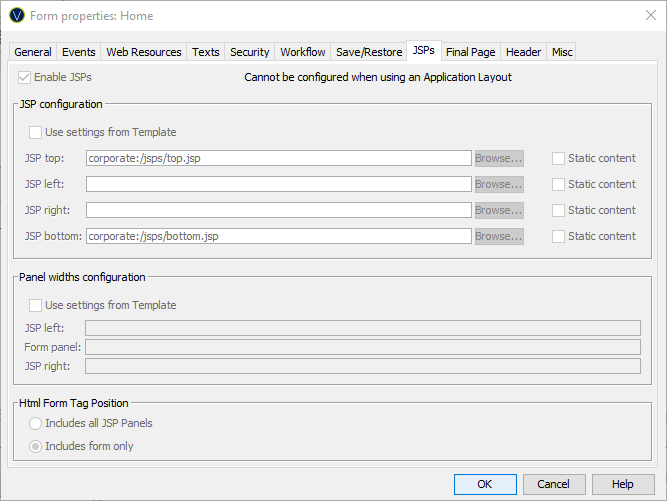
It is not possible to configure JSP’s if the Form is configured to use an Application Layout. The JSP settings will be set from the Application Layout settings. All checkboxes and text fields will be disabled and the settings will be automatically filled in from the Application Layout settings.
Using a Theme or Template
It is possible to set default values for many of these form properties in the presentation template associated with a form. The default properties are configured in the Form section within the Presentation Template Editor.